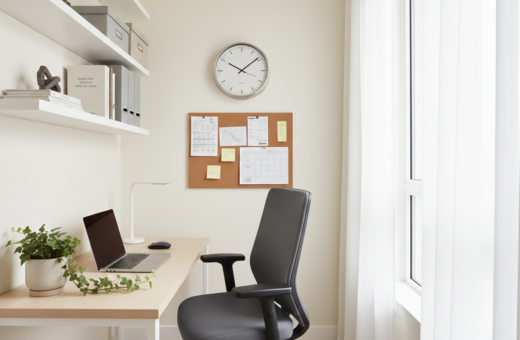
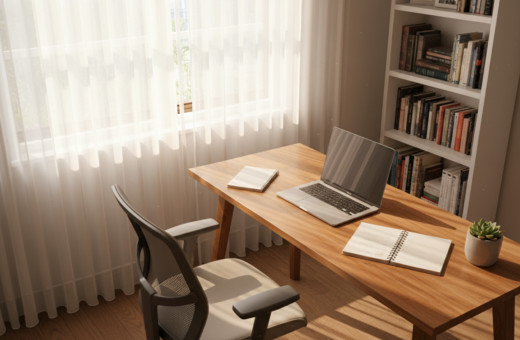
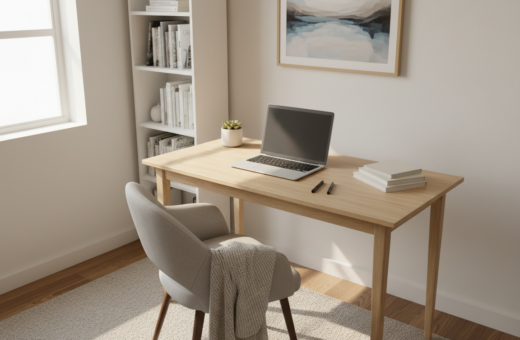
Working from a compact space need not feel cramped. A thoughtful setup can expand the usable work area while keeping sunlight flowing through the room.
Many remote professionals report up to 40% faster task completion when they add a micro second screen. A portable laptop extension offers an easy path to that gain.
By choosing the right hardware and arranging the desk near a window, they keep the area bright and airy. Smart use of vertical space and cable management preserves a tidy aesthetic and boosts productivity.
With careful planning, a compact living area becomes a professional bay for focused work and casual browsing. Small changes—a slim riser, a detachable screen, or a wall mount—create a clear, efficient digital workspace that feels open rather than boxed.
The Psychology of Compact Workspaces
A compact space shapes mental preparation. When a desk is tight, the brain works harder to track tabs, documents, and tasks. That extra effort shows up as faster fatigue over a long day.
Every Alt-Tab or app shuffle imposes a context-switching cost. Over an eight-hour shift, those micro-pauses add up and drain focus. Shifting the load from memory to the environment reduces that drag.
“Moving tasks into visible places cuts mental overhead and preserves attention.”
- Reduce cognitive load: place tools where they stay visible.
- Separate zones: a dedicated home office corner helps the mind switch modes.
- Maintain focus: a clear visual field supports sustained productivity.
Design choices matter. A tidy workspace and deliberate placement of screens create a roomy feel, even when physical space is limited. This helps people stay motivated and mentally sharp throughout the day.
Assessing Your Available Surface Area
Start by mapping the usable top of your desk. Measure front to back and left to right so you know how much clear surface remains after monitors, a keyboard, and a mouse take their place.
Measuring Desk Depth
Industry guidance recommends a desk depth of 23–30 inches for proper ergonomic viewing and comfort. Traditional monitors can consume about 20% of that depth, shrinking usable surface and forcing the user to sit too close.
Use a tape measure before buying hardware. Confirm your chair can roll back and that there is room for input devices. When depth is limited, choose a slim monitor to maximize desk space and preserve good posture.
Evaluating Room Lighting
Assess window placement and how light moves through the area during work hours. Position the monitor so glare is minimized and the eyes rest without strain.
Practical checklist:
- Measure desk surface and clearance for chair movement.
- Aim for 23–30 inches of depth for ergonomic placement.
- Prefer slim displays to reclaim up to 20% of desk space.
- Place screens to reduce glare and protect eye comfort.
Why a Dual Monitor Setup in a Small Apartment Requires Strategic Planning
Fitting two screens into a three-foot work zone demands careful planning and restraint. A good monitor setup avoids visual overload and a tangle of cables while keeping the area bright and usable.
The Canadian Centre for Occupational Health and Safety advises placing your primary monitor directly in front of you. This protects posture and makes long sessions more comfortable.
Strategic choices use verticality and smart tools. Height-adjustable stands and laptop riser stands let one screen sit above another. This frees desk space and creates room for a keyboard and mouse under a raised laptop.
Pairing similar-sized screens, such as a 14-inch laptop and a 14-inch portable display, keeps the view balanced and airy. Use the right tools — cable clips, a compact hub, and a sturdy stand — to reduce clutter.
- Place main monitors for deep work and reserve the secondary screens for references.
- Stash the keyboard under the laptop riser to reclaim surface area.
- Plan screen interaction to boost overall productivity without turning the room into a closet.
Selecting the Right Hardware for Minimalist Desks
Opting for portable displays and modular mounts unlocks surprising flexibility on narrow desktops. The right choices free surface area and keep natural light unobstructed.
Portable monitor advantages: A portable monitor like the Cevaton T2 PRO offers a semi-auto kickstand that stays stable even when part of the unit hangs off the desk. Portable displays have a zero-base profile and use almost no desk depth, so a laptop and extra screen can coexist without crowding.
Choosing slim bezels
Slim bezels reduce wasted width and let a person fit more usable pixels across the same tabletop. That makes the overall setup feel balanced and less cluttered.
Mounting hardware
Invest in a solid arm or monitor arms that support the combined weight of your laptop and secondary screen. Proper mounting keeps devices stable and clears the desktop for essential accessories.
- Space-saver: portable screens fold flat and slip into a drawer.
- Stability: choose mounts with tilt and height adjustment.
- Durability: confirm VESA compatibility and rated weight limits.
The Benefits of Vertical Screen Stacking
Stacking displays vertically saves precious desk width while keeping content within a natural sightline. This approach limits lateral head motion and keeps both work areas easy to view.
Vertical stacking reduces excessive side-to-side eye movement. By placing a laptop on a riser with a secondary monitor below or above, they create a smooth vertical flow for tasks.
This layout suits coding, research, and reference-heavy work. One screen holds source material while the other stays focused on active tasks. The result is faster context switching and fewer interruptions.
- Space saving: a vertical column reclaims desktop area for keyboards and notes.
- Reduced side strain: less horizontal scanning keeps the neck neutral.
- Modern ease: lightweight panels and laptop risers make mounting simple and stable.
Implementing the One Cable Protocol
A clean cable strategy transforms a cluttered desk into a calm working area.
The One-Cable Protocol uses USB-C DisplayPort Alt Mode to carry power and video over a single lead. This removes the need for thick HDMI cords and extra power bricks. It also reduces visual clutter and keeps natural light unobstructed.
USB-C DisplayPort Alt Mode
USB-C DisplayPort Alt Mode lets a modern portable display receive power and high-quality video from one port. It works with most current laptops and mobile panels and supports fast, reliable transmission.
- Reduce spaghetti: switching to a single cord cuts messy tangles.
- Simplify power and video: one lead handles both functions.
- Secure routing: fasten the single cable to the back leg of the laptop stand with a velcro tie.
Result: a near-wireless desk that feels larger and more professional, while maintaining compatibility with industry standards.
Ergonomic Principles for Neutral Posture
Proper screen placement keeps the spine neutral and the eyes relaxed. A deliberate monitor setup helps prevent pain and keeps work efficient.
Eye Level Alignment
The primary monitor should sit directly in front of the user with the top edge at or slightly below eye level. This reduces upward gaze and keeps focus steady.
Secondary screens or portable displays should form a shallow curve so information stays within the visual field. A laptop with an extension can match heights and preserve a consistent line of sight.
Preventing Neck Strain
Keep the head balanced over the torso. When screens are misaligned, the neck tilts and upper-back strain follows.
- Direct view: primary monitor centered to avoid twisting.
- Height match: use adjustable monitor arms or risers so laptop and secondary monitors share a plane.
- Cockpit curve: angle other monitors 15–30 degrees inward to limit head turns.
- Neutral joints: a well-tuned monitor setup keeps shoulders and arms relaxed all day.
Managing Cables to Reduce Visual Clutter
Tidy cable runs make a workspace feel larger and safer. Good cable management is essential for both safety and daily function in a compact work area.
Route all power leads to a junction box or a power strip mounted under the desk. This clears the desktop and keeps cords off the surface where they collect dust and distract attention.
Use magnetic cable ties to group cords along the steel frame. They let a person add or remove cords as the setup evolves and keep items tidy behind the desk.
- Allow tray depth: plan for 20–30 cm of tray space at the back to hold power strips and bulky bundles.
- Protect movement: secure cords so they won’t snag when changing desk height or moving accessories.
- Keep it usable: route data and power separately where possible to simplify troubleshooting and future upgrades.
Well-managed wires reduce distraction and protect equipment. A clean look helps the user focus on work, not a tangle of cords, and supports a professional setup.
Utilizing L Shaped Desks for Corner Efficiency
An L-shaped desk turns an awkward corner into a focused command center for daily tasks. It consolidates tools and clears open floor area, giving the room a more spacious feel.
Zoning Your Workspace
Choose an L-desk with a return of about 60–72 inches and a depth of 23–30 inches for proper ergonomics. This size gives enough surface area for a primary computer area and a separate side for notes or reference materials.
Benefits: An L desk creates two dedicated zones. One side hosts the primary computer and essential peripherals. The other side becomes a clean surface for writing, prints, or a compact desktop printer.
- Corner efficiency: transforms unused corners into productive hubs.
- Clear zoning: separates digital work from analog tasks for less clutter.
- Ergonomic reach: places monitors within a comfortable wraparound view while keeping the keyboard and mouse accessible.
When chosen well for a home office, an L-shaped desk keeps equipment contained without overwhelming the living area. It supports a tidy, efficient workspace that feels organized and bright.
Integrating Sit Stand Functionality
A height-adjustable desk turns brief shifts between sitting and standing into a simple habit that supports long-term health.
Choose a desk with a dual-motor lift so the surface stays steady when bearing heavy gear. A system rated above 100 kg prevents wobble and keeps the work surface firm when changing positions.
Apply the 20-8-2 rule: 20 minutes sitting, 8 minutes standing, and 2 minutes moving or stretching. This cycle maintains circulation, reduces fatigue, and boosts overall productivity.
Save preferred height positions using memory presets so the keyboard and screen remain at the right level each time. Quick adjustments encourage consistent use and add useful flexibility to the day.
- Stability: verify load capacity and lift smoothness before buying.
- Ergonomics: keep the keyboard at a neutral level to protect wrists and shoulders.
- Cable care: route cords with extra slack and secure ties so they move freely when the desk rises or lowers.
Well-engineered sit–stand furniture increases comfort and supports steady work rhythms. It makes regular movement easy and keeps the workstation reliable as tasks change.
Maintaining Natural Light and Room Flow
Placing the desk to follow the path of daylight helps rooms feel larger and work sessions brighter. Position the desk near a window to capture mood-boosting natural light and cut reliance on overhead lamps.
Avoid blocking windows with bulky furniture. That keeps the room airy and prevents a cramped feeling. A floating desk can open circulation, as long as there is enough space for chair movement and good traffic flow.
Orient screens so sunlight hits from the side rather than straight on. This reduces glare and keeps visual comfort high through the day. Small adjustments — a slight desk shift or a thin blind — often solve most glare issues.
Keep the desk surface clear: tidy cables, limit decor, and store rarely used items. A clean surface preserves room flow and helps the workspace feel like a natural part of the home.
- Maximize light: place work areas where daylight is strongest.
- Protect sightlines: avoid large pieces that block windows.
- Test placement: try a temporary layout or consult a guide to a desk against a window.
Conclusion
A thoughtful plan about height, cable routing, and accessories lets a compact desk behave like a full office. By choosing a portable laptop extension and solid monitor arms, one can keep screens aligned at eye level while preserving natural light. Good cable management keeps the desktop clear and the work area calm.
Follow the 20-8-2 rule for standing and movement, and invest in quality tools and accessories that scale with needs. With ergonomic alignment and tidy cables, the workspace stays productive and comfortable for long days of work.